June 29, 2026
How to Connect Square to Shopify (2026 Guide)
You sold the last pair of size 10s off the shelf this morning. Twenty minutes later, someone buys that same pair on your website. Now you're writing the worst email in retail, the one that says "so sorry, that item is actually out of stock," and hoping they don't leave a one-star review on the way out.
If you run Square in your shop and Shopify online, this isn't a rare glitch. It's the default. The two systems don't know the other one exists, and closing that gap is the whole reason this guide exists.
Does Square sync with Shopify natively?
No. Square and Shopify each keep their own separate inventory, and there is no built-in connection between them. Sell something on Square and Shopify has no idea. Sell something on Shopify and Square never finds out. Each platform is convinced it has the full picture, and neither one does.
That's not a knock on either product. They're both excellent at their own job. It just means that the moment you sell in two places, keeping stock honest becomes your job, unless you put something in the middle to do it for you.
There are four ways to handle that. Three of them will let you down eventually. Let's go through all of them honestly.
The four ways to connect Square and Shopify
1. Update both by hand
The free option: every time something sells, you log into the other system and fix the number yourself.
This actually works for about a week, or until you have more than a handful of products and more than a few orders a day. After that it's a part-time job you didn't apply for, and one skipped update is one oversold customer. Fine for a tiny catalog. A trap for a growing one.
2. Export and import CSV files
A step up: pull your inventory out of one platform as a spreadsheet and load it into the other.
The problem is timing. A CSV is a photograph, not a live feed. Every sale that happens between exports opens a gap, and the gap is invisible until a customer falls into it. You're also one bad column away from overwriting your good data with stale numbers. Useful for a one-time migration. Useless as an everyday system.
3. Move everything onto one platform
You could drop Square and run Shopify POS in-store, or drop Shopify and use Square's built-in online store. One system, no sync needed.
Sometimes that's genuinely the right call. But usually you're on both for a reason. Maybe Square's hardware and card rates work for your counter, and Shopify's storefront and apps work for your website. Ripping out a system that's doing its job, just to avoid a sync problem, is a big move to fix a small thing.
4. Connect them with a sync tool (the one that scales)
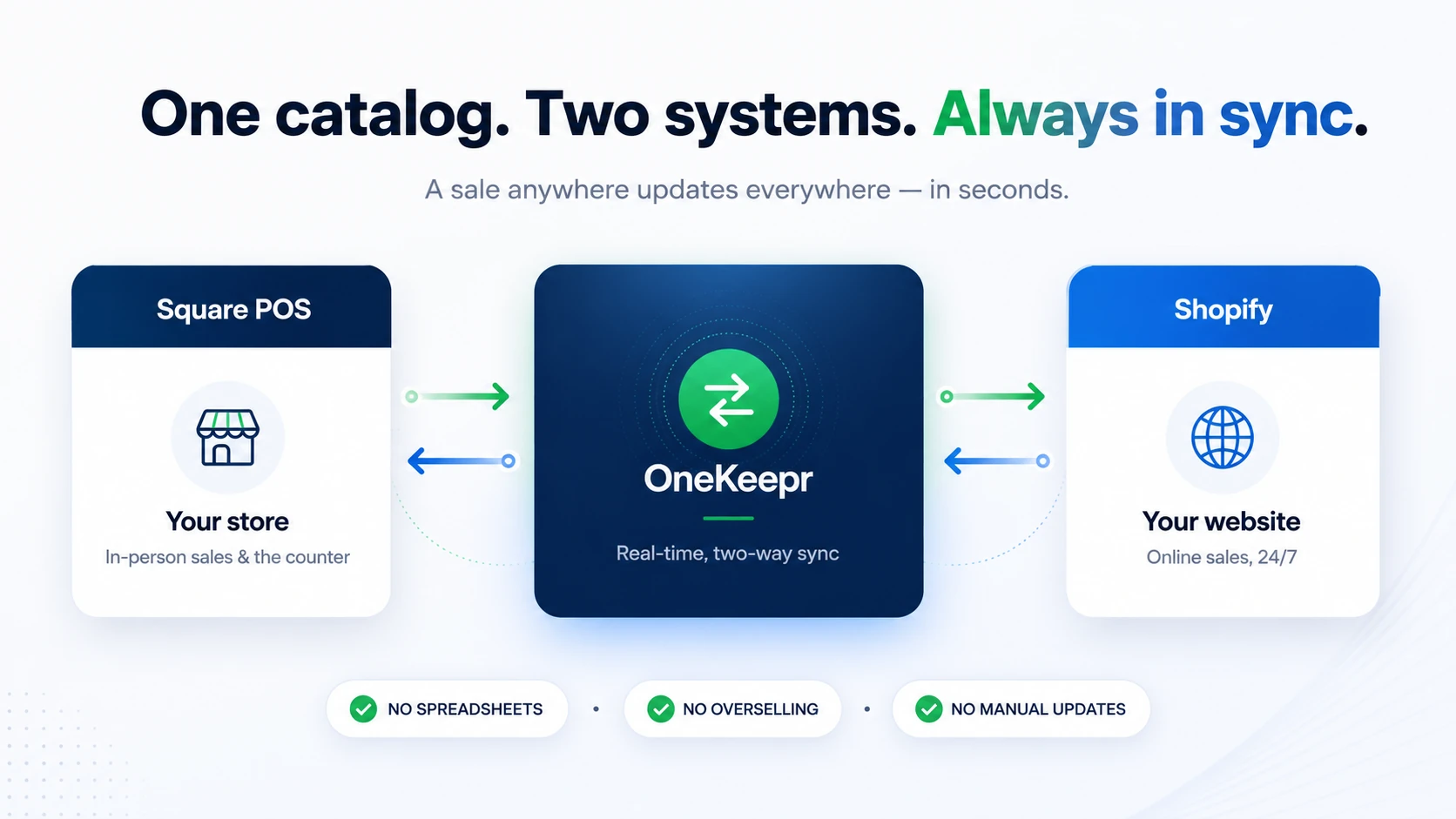
The approach built for businesses that sell in both places on purpose: a tool that sits between Square and Shopify and keeps them honest automatically. Sell in-store, your website updates. Sell online, your counter updates. No spreadsheets, no logging in to fix numbers, no canceled orders.
This is the only method on the list that actually holds up as you grow, which is why it's what the rest of this guide is about. But not all sync tools are equal, so let's define what "good" even means before you pick one.
What good sync actually looks like
"Syncs inventory" is on every product page in this category. The differences that decide whether you ever oversell again are underneath that line:
- Two-way, not one-way. Plenty of tools only push Square to Shopify, or make you log in and manually pick which number is "right" every time there's a conflict. Real sync moves in both directions on its own. A sale anywhere updates everywhere.
- Real-time, not "every so often." A sync that runs on a timer leaves a window open between checks, and overselling lives in that window. You want changes to flow in seconds, not on a schedule.
- Matches on SKU, cleanly. Tools pair your products across platforms by SKU. If your SKUs are blank, duplicated, or full of stray spaces and tabs, items silently fail to match, and "it just won't sync" is almost always really "the SKUs don't line up." Good tooling is strict and clear about this instead of failing quietly.
- Won't loop or double-count. When System A updates System B, that change can echo back and trigger another update, forever. A tool that doesn't guard against feedback loops will happily corrupt your counts. This should be handled for you, invisibly.
- Pricing that doesn't punish a good month. Some tools charge by order volume, so your bill spikes exactly when sales are good. Flat, capacity-based pricing means a great December costs you the same as a slow February.
Hold any sync tool up to those five points before you trust it with your stock.
How to connect Square to Shopify with OneKeepr
OneKeepr was built by a shop owner who got tired of unreliable sync tools, so it's deliberately boring to set up, in the good way. Here's the whole thing:
- Clean up your SKUs first. This is the step everyone skips and everyone regrets. Make sure every product you want synced has a unique SKU that matches across Square and Shopify, with no blanks and no duplicates. Twenty minutes here saves you hours later.
- Connect your POS. Authorize Square. OneKeepr reads your catalog and locations, no spreadsheets.
- Connect your website. Authorize Shopify the same way.
- Run the one-time bulk sync. OneKeepr lines up both catalogs by SKU and gets your starting counts in agreement.
- Turn on real-time sync and walk away. From here, every sale, return, and restock on either side updates the other automatically, in seconds.
That's it. No timers to babysit, no conflict prompts, no logging in to referee which number is correct. Start a free 7-day trial and you can have it running before your next shift ends.
Common problems (and how to dodge them)
- Items that won't sync. Nine times out of ten it's a SKU that's blank, duplicated, or has hidden spaces or tabs in it. Fix the SKU, the item appears. (This one is so common it gets its own guide: why your Square and Shopify SKUs aren't matching.)
- Duplicate products online. Usually caused by running a CSV import and a sync tool at the same time, so the same product gets created twice. Pick one method and stick to it.
- Stock drifting out of agreement. The classic symptom of one-way sync or a timer-based tool. The fix is two-way, real-time sync, see the five-point checklist above.
- Overselling during sales events. Your highest-traffic days are when a slow sync hurts most. If a flash sale makes you nervous about your tooling, that's your tool telling you something.
FAQ
Does Square sync with Shopify natively? No. They're separate platforms with separate inventory and no built-in link. A sale in one won't touch the other unless you add a sync tool between them.
Can I connect Square and Shopify for free? You can update both by hand for free, but that only works for a tiny catalog with very few orders. Any real volume needs automated sync, which generally starts around $29/month.
Will a sale in my store automatically lower stock on my website? Only with two-way, real-time sync running between them. Done right, selling the last item in-store drops it to zero online within seconds, that's what stops overselling.
What happens if my SKUs don't match between Square and Shopify? Sync matches products by SKU, so mismatched, blank, or duplicate SKUs are the top reason items fail to sync. Clean them up before connecting the two systems.
How long does it take to connect Square to Shopify? With a dedicated app, the connection itself takes a few minutes: authorize Square, authorize Shopify, run a one-time bulk sync. Cleaning up SKUs beforehand is the part that takes real time.
Stop hand-updating two systems and writing apology emails. Connect Square and Shopify with OneKeepr and keep every shelf and every product page honest, automatically. Your free trial runs for 7 days.